
WC3Connect: Difference between revisions
imported>Unitil No edit summary |
imported>Unitil No edit summary |
||
| Line 8: | Line 8: | ||
==Setup== | ==Setup== | ||
=== WC3 Connect Links === | |||
{| class="article=table" | {| class="article=table" | ||
|- | |- | ||
! scope="row" colspan="3" | WC3Connect Download Links | ! scope="row" colspan="3" align="Left" | WC3Connect Client Download Links | ||
|- | |- | ||
| [https://entgaming.net/wc3connect.exe | | Windows | ||
| [https://entgaming.net/wc3connect-osx.zip | | [https://entgaming.net/wc3connect.exe https://entgaming.net/wc3connect.exe] | ||
| [https://entgaming.net/wc3connect-amd64 | |- | ||
| Macintosh | |||
| [https://entgaming.net/wc3connect-osx.zip https://entgaming.net/wc3connect-osx.zip] | |||
|- | |||
| Linux | |||
| [https://entgaming.net/wc3connect-amd64 https://entgaming.net/wc3connect-amd64] | |||
|- | |||
! scope="row" colspan="3" align="Left" | Cross-platform Version - Requires Java | |||
|- | |||
| Download | |||
| [https://entgaming.net/wc3connect.jar https://entgaming.net/wc3connect.jar] | |||
|- | |||
| Java | |||
| [https://www.java.com/en/download/ https://www.java.com/en/download/] | |||
|} | |} | ||
=== Prerequisites === | === Prerequisites === | ||
| Line 25: | Line 39: | ||
|1.30.1.10211 | |1.30.1.10211 | ||
|} | |} | ||
==How-To Guides== | ==How-To Guides== | ||
| Line 60: | Line 73: | ||
# Login using your existing username and password | # Login using your existing username and password | ||
#* If you do not have an account, follow the '''Account Creation''' steps listed above. | #* If you do not have an account, follow the '''Account Creation''' steps listed above. | ||
# Select your desired game from the available games list(s). | # Select your desired game from the available games list(s). (See Figure 1) | ||
#* Games are seperated into 3 tabs | |||
#** '''Public''' - Player hosted games from ENT and MMH | |||
#** '''ENT Autohost''' - Autohosted games from ENT Gaming | |||
#** '''Others''' - Autohosted games from other communities | |||
# Open Warcraft III | |||
# Select '''Local Area Network''' (See Figure 2) | |||
# Select your desired game from the games list (See Figure 3) | |||
#* Dependent on the number of local network adapters with IPs, it will display the same lobby multiple times when you've selected a lobby in the WC3Connect client. | |||
# If joined successfully, you should be in a game lobby (See Figure 4) | |||
<gallery> | |||
WC3Connect_Find-Lobby.png|Figure 1 | |||
WC3Connect_Lan-Menu.png|Figure 2 | |||
WC3Connect_Lan-Lobby-List.png|Figure 3 | |||
WC3Connect_In-Game-Lobby.png|Figure 4 | |||
</gallery> | |||
<hr/> | <hr/> | ||
</div> | </div> | ||
| Line 66: | Line 94: | ||
<div class="mw-collapsible mw-collapsed" style="width:100%" style="height:auto"> | <div class="mw-collapsible mw-collapsed" style="width:100%" style="height:auto"> | ||
=== | ====Validate Your WC3Connect Account On the ENT Gaming Forum==== | ||
<hr/> | <hr/> | ||
<div class="mw-collapsible-content"> | <div class="mw-collapsible-content"> | ||
'''ENT Gaming Forum''' | |||
# [https://entgaming.net/forum/ucp.php?mode=login Login] to the ENT Gaming Forum | |||
# Navigate to the [https://entgaming.net/link/validate.php Validate] portion of [https://entgaming.net/link/ ENT Link] | |||
# Complete the following: (See Figure 1) | |||
#* Fill in username | |||
#* Select '''WC3Connect''' | |||
#* Click '''Validate''' | |||
#** This will provide you with a code to insert into your WC3Connect client (See Figure 2) | |||
'''WC3Connect Client''' | |||
# Open the WC3Connect client | |||
# Login with the account you wish to validate | |||
# Open the Validate setting: (See Figure 3) | |||
#* Click Settings > Validate | |||
# Enter the code provided on the forum and click '''Validate Account''' (See Figure 4) | |||
#* If Validate request is sent successfully, it will display a specific message (See Figure 5) | |||
#* You can verify your account has been validated via [https://entgaming.net/link/accounts.php Linked Accounts] in [https://entgaming.net/link/ ENT Link] | |||
<gallery> | |||
WC3Connect_Validate-Forum.png|Figure 1 | |||
WC3Connect_Validate-Code.png|Figure 2 | |||
WC3Connect_Validate-Setting.png|Figure 3 | |||
WC3Connect_Validate-Input-Code.png|Figure 4 | |||
WC3Connect_Validate-Success.png|Figure 5 | |||
</gallery> | |||
<hr/> | <hr/> | ||
</div> | </div> | ||
Revision as of 04:50, 17 October 2018
WC3Connect
Standalone app used to connect your Warcraft III client to multiple communities.
Advantages
- Join Games Easier: All that is required is for you to create an account, and select a game listed within the WC3Connect client. After, launch your Warcraft III game and navigate to the LAN menu to join your desired lobby.
- Reduces chance of disconnection: WC3Connect gives you GProxy++ support, meaning that you can reconnect to games if your Internet connection briefly disconnects.
Setup
WC3 Connect Links
| WC3Connect Client Download Links | ||
|---|---|---|
| Windows | https://entgaming.net/wc3connect.exe | |
| Macintosh | https://entgaming.net/wc3connect-osx.zip | |
| Linux | https://entgaming.net/wc3connect-amd64 | |
| Cross-platform Version - Requires Java | ||
| Download | https://entgaming.net/wc3connect.jar | |
| Java | https://www.java.com/en/download/ | |
Prerequisites
| WC3 Expansion: | Warcraft III:The Frozen Throne |
| Patch Version: | 1.30.1.10211 |
How-To Guides
Account Creation
| NOTE: If you had an ENT Gaming forum account prior to Oct.14 2018, then use your forum login credentials to log in. |
- Insert your desired username
- Insert your desired password
- Click Sign Up
- If the account is available, you'll be prompted that the account creation was successful (See Figure 2)
- If the account is unavailable, you'll be prompted that the username is unavailable (See Figure 3)
Below is an overview of the signup process:
-
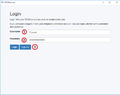 Figure 1
 -
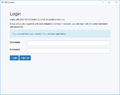 Figure 2
 -
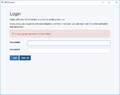 Figure 3


Joining A Game
- Open WC3Connect
- Login using your existing username and password
- If you do not have an account, follow the Account Creation steps listed above.
- Select your desired game from the available games list(s). (See Figure 1)
- Games are seperated into 3 tabs
- Public - Player hosted games from ENT and MMH
- ENT Autohost - Autohosted games from ENT Gaming
- Others - Autohosted games from other communities
- Games are seperated into 3 tabs
- Open Warcraft III
- Select Local Area Network (See Figure 2)
- Select your desired game from the games list (See Figure 3)
- Dependent on the number of local network adapters with IPs, it will display the same lobby multiple times when you've selected a lobby in the WC3Connect client.
- If joined successfully, you should be in a game lobby (See Figure 4)
-
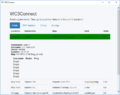 Figure 1
 -
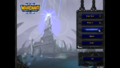 Figure 2
 -
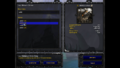 Figure 3
 -
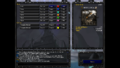 Figure 4


Validate Your WC3Connect Account On the ENT Gaming Forum
ENT Gaming Forum
- Login to the ENT Gaming Forum
- Navigate to the Validate portion of ENT Link
- Complete the following: (See Figure 1)
- Fill in username
- Select WC3Connect
- Click Validate
- This will provide you with a code to insert into your WC3Connect client (See Figure 2)
WC3Connect Client
- Open the WC3Connect client
- Login with the account you wish to validate
- Open the Validate setting: (See Figure 3)
- Click Settings > Validate
- Enter the code provided on the forum and click Validate Account (See Figure 4)
- If Validate request is sent successfully, it will display a specific message (See Figure 5)
- You can verify your account has been validated via Linked Accounts in ENT Link
-
 Figure 1
 -
 Figure 2
 -
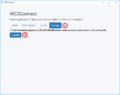 Figure 3
 -
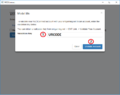 Figure 4
 -
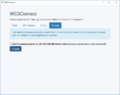 Figure 5


